| Manage Hierarchy | Approve | ||||||||||||||||||||||||||||||||||||||||||||||||||||||||||||||||||||||||||||||||||||||||||||||||||||||||||||||||||||||||||||||||||||||||||||||||||||||||||||||||||||||||||||||||||||||||||||||||||||||||||||||||||||||||||||||||||||||||||||||||||||||||||||||||||||||||||||||||||||||||||||
|
| ||||||||||||||||||||||||||||||||||||||||||||||||||||||||||||||||||||||||||||||||||||||||||||||||||||||||||||||||||||||||||||||||||||||||||||||||||||||||||||||||||||||||||||||||||||||||||||||||||||||||||||||||||||||||||||||||||||||||||||||||||||||||||||||||||||||||||||||||||||||||||||
| Manage Hierarchy | Approve | ||||||||||||||||||||||||||||||||||||||||||||||||||||||||||||||||||||||||||||||||||||||||||||||||||||||||||||||||||||||||||||||||||||||||||||||||||||||||||||||||||||||||||||||||||||||||||||||||||||||||||||||||||||||||||||||||||||||||||||||||||||||||||||||||||||||||||||||||||||||||||||
|
| ||||||||||||||||||||||||||||||||||||||||||||||||||||||||||||||||||||||||||||||||||||||||||||||||||||||||||||||||||||||||||||||||||||||||||||||||||||||||||||||||||||||||||||||||||||||||||||||||||||||||||||||||||||||||||||||||||||||||||||||||||||||||||||||||||||||||||||||||||||||||||||
Hope this helps someone out there.
I was recently moving a WSS2.0 site (not site collection) to MOSS and thought it was going to be fairly quick and straight forward.
The upgrade went fine, but when I tried to use Designer to move the site, but during the restore I received:
Error occured while importing the web http://portal/newsite
Could not find file 'C:\windows\temp\a93239....\exportsettings.xml'
I then decided to use "STSADM –o export" to move the site. This worked fine, but for some reason it was not backing up all of my files. Documents were missing and not being transferred. After some investigation, I realized that this is one of those times where the switches are very important. You have to include the "–versions" switch and set it to the level you want:
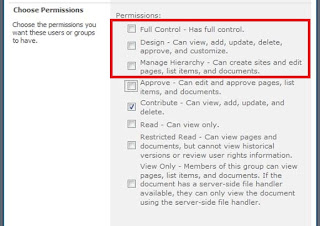
Any one of the following versions:
By design, the export will not export documents without a published major version or draft copies unless you set the switch correctly. Once I added "–versions 4", everything backed up perfectly
In my previous blog post, titled Comprehensive SharePoint Disaster/Recovery I outline the details on what needs to be backed up in a SharePoint environment. Although the post provides all the details, I was starting to wonder if there was a way to automate backing up at least the Web Server. After a bit of tinkering, I was able to successfully backup all the data on my SharePoint Web Server. It backs up a bit more data than it needs to, but this is a full proof method that can be used in your environments. All you really need to do to the code is change the output directory and make sure the default directories are accurate.
Warning: This was a quick script that I tested in two virtual environments. If you experience problems, e-mail me and I'll do my best to respond quickly. Also, there is no error trapping in here....:/. You will have to implement that on your own.
Here is a the sample VBS script:
Option Explicit
'-------------------------------------------------------------------------------
'
' Backs up SharePoint 2007 Front End Web Servers
' Written by: Pirooz Javan
' Create Date: 08/13/2007
' Last Updated Date: 12/05/2007
'
' Description:
' This script is used for to help automate the process of
' backups for your SharePoint 2007 Front End Web Servers. To run this script
' there are serveral dependencies:
' - iisback.vbs
' -STSADM.EXE
'
'-------------------------------------------------------------------------------
'Set the default SharePoint installation path
Dim sharePointInstallationPath
sharePointInstallationPath = "C:\Program Files\Common Files\Microsoft Shared\Web Server Extensions"
'Set the path to iisback.vbs system file
Dim iisBackupTool
iisBackupTool = "C:\WINDOWS\system32\iisback.vbs"
'Set the path to default IIS log folder
Dim iisDefaultLogsPath
iisDefaultLogsPath = "C:\WINDOWS\system32\LogFiles"
'Set the path to the backup output
Dim outputPath
outputPath = "C:\SharePointBackups"
'IIS Configuration file backup names
Dim iisConfigurationBackupFile
iisConfigurationBackupFile = "IISConfigurationBackup"
'Set Path to IIS configuration backup foloder
Dim metaBackPath
metaBackPath ="C:\WINDOWS\system32\inetsrv\MetaBack"
'Set Path to GAC Assemblies foloder
Dim gacAssembliesPath
gacAssembliesPath ="C:\WINDOWS\assembly"
'Set string that will detect a SharePoint application in IIS HttpCustomHeaders
Dim strDetectSharePointApp
strDetectSharePointApp = "MicrosoftSharePointTeamServices"
'-------------------------------------------------------------------------------
Dim objShell 'Shell Object
Dim objFSO 'File System Object
Dim objXmlDoc 'XML Object
Dim objNodeList 'XML Object
Dim xNode 'XML Object
Dim objNet 'Network Object
Set objShell = CreateObject("wscript.shell")
Set objFSO = CreateObject("Scripting.FileSystemObject")
Set objXmlDoc = CreateObject("Msxml2.DOMDocument")
Set objNet = CreateObject("WScript.NetWork")
'-------------------------------------------------------------------------------
' MAIN PROGRAM CALLS
'-------------------------------------------------------------------------------
Call BuildDirectory(outputPath)
WScript.Sleep(2000) 'Wait 2 Seconds
'Call BackupSystemState("SystemState")
Call BackupGACAssemblies("GACAssemblies")
Call BackupIISConfiguration("IISConfiguration")
' In order to run these, BackupIISConfiguration must be executed first
' so that the XML will be loaded
Call BackupDefaultLogPath("DefaultLogs")
WScript.Sleep(2000) 'Wait 2 Seconds
Call BackupDefaultSharePointFiles("SharePointFiles")
WScript.Sleep(2000) 'Wait 2 Seconds
Call BackupIISLogs("IISFiles")
WScript.Sleep(2000) 'Wait 2 Seconds
Call BackupIISWebs("IISFiles")
WScript.Sleep(2000) 'Wait 2 Seconds
Call BackupSharePointWebs("SharePointWebs")
'-------------------------------------------------------------------------------
' SUBROUTINES AND FUNCTIONS
'-------------------------------------------------------------------------------
Sub BackupSystemState(folder)
WScript.Echo "Backing up System State..."
BuildDirectory outputPath & "\" & folder
'Backups up system state and overwites the file
objShell.Run "ntbackup backup systemstate /J " & chr(34) & "Backup Job" & chr(34) & " /F " & outputPath & "\" & folder & "\SystemStateBackup.bkf /a", 0, True
End Sub
Sub BackupGACAssemblies(folder)
WScript.Echo "Backing up GAC Assemblies..."
BuildDirectory outputPath & "\" & folder
'Backups up GAC assemblies
objShell.Run "xcopy " & gacAssembliesPath & " " & outputPath & "\" & folder & " /e", 0, True
End Sub
Sub BackupIISConfiguration(folder)
WScript.Echo "Backing up IIS Configuration..."
BuildDirectory outputPath & "\" & folder
'Backups up IIS metabase configuration file (Metabase.xml) and the matching metabase schema file (MBSchema.xml)
objShell.Run "Cscript.exe " & iisBackupTool & " /backup /b " & iisConfigurationBackupFile & " /overwrite", 0, True
WScript.Sleep(3000) 'Wait 3 seconds for IIS to finish backing up
objFSO.CopyFolder metabackPath, outputPath & "\" & folder
objXmlDoc.load(getLatestIISBackupFile())
End Sub
Sub BackupDefaultLogPath(folder)
WScript.Echo "Backing up Default log folder at " & iisDefaultLogsPath
BuildDirectory outputPath & "\" & folder
'Backups up the default log folder
objFSO.CopyFolder iisDefaultLogsPath, outputPath & "\" & folder, True
End Sub
Sub BackupDefaultSharePointFiles(folder)
WScript.Echo "Backing up Default SharePoint folder at " & sharePointInstallationPath
BuildDirectory outputPath & "\" & folder
'Backups up the default SharePoint folder
objFSO.CopyFolder sharePointInstallationPath, outputPath & "\" & folder, True
End Sub
Sub BackupIISLogs(folder)
WScript.Echo "Backing up IIS Log files..."
BuildDirectory outputPath & "\" & folder
Set objNodeList = objXmlDoc.getElementsByTagName("IIsWebServer")
WScript.Echo objNodeList.length
If objNodeList.length > 0 Then
For each xNode In objNodeList
If len(xNode.getAttribute("LogFileDirectory"))>"0" Then
'Does not backup logs in default log path.
If InStr(xNode.getAttribute("LogFileDirectory"), iisDefaultLogsPath) = "0" Then
CopyFolder xNode.getAttribute("Location"), xNode.getAttribute("LogFileDirectory"), outputPath & "\" & folder, "_Logs"
End If
End If
Next
End If
End Sub
Sub BackupIISWebs(folder)
WScript.Echo "Backing up IIS Web files..."
BuildDirectory outputPath & "\" & folder
Set objNodeList = objXmlDoc.getElementsByTagName("IIsWebVirtualDir")
If objNodeList.length > 0 Then
For Each xNode In objNodeList
If InStr(xNode.getAttribute("Path"), sharePointInstallationPath) = "0" Then
CopyFolder xNode.getAttribute("Location"), xNode.getAttribute("Path"), outputPath & "\" & folder, "_Web"
End If
Next
End If
End Sub
Sub BackupSharePointWebs(folder)
WScript.Echo "Backing up SharePoint with STSADM..."
BuildDirectory outputPath & "\" & folder
Set objNodeList = objXmlDoc.getElementsByTagName("IIsWebVirtualDir")
Dim url
Dim command
If objNodeList.length > 0 Then
For Each xNode In objNodeList
If InStr(xNode.getAttribute("HttpCustomHeaders"), strDetectSharePointApp) <> "0" Then
url = getSharePointURLfromAppID(getIISApplicationID(xNode.getAttribute("Location")))
command = chr(34) & sharePointInstallationPath & "\12\BIN\STSADM.EXE" & chr(34) & " -o backup"
command = command & " -url http://" & url
command = command & " -filename " & outputPath & "\" & folder & "\" & Replace(Replace(url,".", "_"),":","_") & ".dat"
command = command & " -overwrite"
WScript.Echo "Running: " & command
objShell.Run command, 0, True
End If
Next
End If
End Sub
Sub CopyFolder(LocationID, SourcePath, DestinationPath, appendString)
WScript.Echo "got here for locationid " & LocationID
'Build IIS application folder
BuildDirectory DestinationPath & "\" & getIISApplicationID(LocationID)
'Build directory to backup to
Dim backupDirectory
backupDirectory = Mid(SourcePath, 4, Len(SourcePath)) 'Removes Drive Letter
backupDirectory = Replace(backupDirectory, "\", "_")
backupDirectory = backupDirectory & appendString
'Build path to backup To
Dim BackupPath
BackupPath = DestinationPath & "\" & getIISApplicationID(LocationID) & "\" & backupDirectory
If (Right(SourcePath, "1") = "\") Then
SourcePath = Left(SourcePath, Len(SourcePath)-1)
End if
WScript.Echo "Copying " & SourcePath & " to " & BackupPath
objFSO.CopyFolder SourcePath, BackupPath, True
End Sub
Sub BuildDirectory(path)
If (objFSO.FolderExists(path) = False) Then
objFSO.CreateFolder(path)
End If
End Sub
' Finds the latest MDX file
Function getLatestIISBackupFile()
Dim m_iisMetaFolder, m_File
Set m_iisMetaFolder = objFSO.GetFolder(metaBackPath)
Dim path
Dim latestFileDate
latestFileDate = CDate("01/01/01")
For Each m_File In m_iisMetaFolder.Files
If InStr(m_File.Name, iisConfigurationBackupFile & ".MD") Then
If (m_file.DateLastModified > latestFileDate) Then
latestFileDate = m_file.DateLastModified
path = m_file.Path
End If
End If
Next
getLatestIISBackupFile = path
End Function
Function getIISApplicationID(Location)
Location = Replace(Location, "/LM/W3SVC/", "")
If InStr(Location, "/") > "0" Then
Location = Left(Location, InStr(Location, "/")-1)
End If
getIISApplicationID = Location
End Function
Function getSharePointURLfromAppID(AppID)
Set objNodeList = objXmlDoc.getElementsByTagName("IIsWebServer")
'Assuming Server Binding Format of:: :
Dim Port
Dim HostName
Dim firstColon, secondColon
If objNodeList.length > 0 Then
For Each xNode In objNodeList
If InStr(xNode.getAttribute("Location"), AppID) <> "0" Then
firstColon = InStr(xNode.getAttribute("ServerBindings"), ":")
secondColon = InStr(firstColon+1, xNode.getAttribute("ServerBindings"), ":")
If InStr(xNode.getAttribute("SecureBindings"), "443") <> "0" Then
Port = "443"
Else
Port = Mid(xNode.getAttribute("ServerBindings"), firstColon+1, secondColon-firstColon-1)
End If
HostName = Right(xNode.getAttribute("ServerBindings"), Len(xNode.getAttribute("ServerBindings"))-secondColon)
If (Len(HostName) = "0") Then
HostName = objNet.ComputerName
End if
End If
getSharePointURLfromAppID = HostName & ":" & Port
Next
End If
End Function
'Disposing objects
Set objNet = Nothing
Set objNodeList = Nothing
Set objXmlDoc = Nothing
Set objFSO = Nothing
Set objShell = Nothing
WScript.Quit
High availability is a requirement and is usually at the top of the priority level for most real-world production environments. Luckily, for SharePoint there are a lot of options on how to configure your farm in order to load balance, cluster and provide the appropriate level of fault tolerance, given your budget, resources and timeline. Overall, there's been a lot of good material on the Web and in books that describe various approaches to backing up SharePoint environments. Joel Oleson has one of the better blog posts that give you all the information for what needs to be backed up and the tools that are available in SharePoint Backup Restore, High Availability, and Disaster Recovery. Most of the information available will give you the basic overview and provide a high level strategy on how to backup your SharePoint Farm. The reason most articles provide strategy vs. detail is because each environment can vary significantly and therefore, would alter the specifics of your Disaster/Recovery (D/R) plan. Factors that may influence the process are:
The purpose of this article is to provide the details for how to fully backup a SharePoint environment. Because I am not using any 3rd party tools which include nice features such as incremental or full backups, the process will backup everything on a nightly basis. As a result, this approach is not the cleanest or fastest one out there and may fall outside the boundaries of your product environment SLAs. Alternatively, you may choose to use this approach for development or staging environments if you wish to cut down on backup software licensing costs. This document focuses ONLY on backing up SharePoint related data and not server related data. The goal is to backup SharePoint and Restore SharePoint, not the entire server. As a result, data such as event logs and the C drive is not included. Apply the contents of this article with your standard D/R plan for Windows 2003 servers to achieve full D/R plan for the server.
Note: There will be overlap, so adjust as necessary. For example, this article will backup all SharePoint sites using STSADM causing a backup of content and configuration databases. If you plan on using SQL Maintenance Plans to backup databases, this is where the overlap will occur. I prefer to have this type of overlap as it provides multiple options during the restore process.
Because SharePoint environments are broken into the following basic categories:
To back everything up, I will break out the information into the following three sections: Web Front End, Index and Database.
Web Front End servers contain all of the files that are used to call and render content to the user. Information is either pulled from local cached data (index data), Index server and content or configuration databases. Because of that, the web front end does not typically contain much data to backup. Whether or not you are doing custom development, it is still good practice to back up the entire SharePoint installation folders which will contain the out of box files along with custom templates, site definitions, list definitions, and custom ASPX files among other things.
To backup a Web Front End server, you can make your life a lot easier by working with a series of Batch files that can help automate the process. These batch files are important, because they contain the command line options that can be scheduled on your server during the most appropriate times for your maintenance period. Because the batch files are dependent on specific executables, the paths used in these examples are based on default installations. You may need to change those to reflect your specific installation. Additionally, it is recommended to place your batch files in a single folder for simplified management. For example, you can create a folder C:\SharePointBackups\ConfigurationItems (assuming your C drive has adequate disk space).
Nevertheless, the following data needs to be backed up on your SharePoint Front End Web Server:
Data | Process |
System State | To backup the system state, you can create a BAT file that is scheduled to run with the following command: ntbackup backup systemstate /J "Backup Job" /F "C:\ SharePointBackups \backup.bkf" |
GAC Assemblies | When doing custom development and deploying fully trusted web parts, DLLs will be installed in the GAC. It is safe practice to just backup all of the GAC assemblies folder located at: C:\WINDOWS\assembly |
IIS Sites | Backup all of the home directories for all of the IIS sites |
IIS Logs | Backup all of the log directories for all of the IIS sites Also include backing up: C:\WINDOWS\system32\LogFiles Note: The default location for SharePoint Usage logs are located at: C:\Windows\System32\LogFiles\STS\ and will be included in this backup. If you change the default location for this path, then that directory must also be included in your backup plan. Other Windows SharePoint Services logs (Optional): STSAdm.log and OWSTimer.log from the C:\Documents and Settings\ Windows_SharePoint_Services_Administrator_Account \Local Settings\Temp directory. |
IIS Configuration | To backup IIS configuration, you must backup the IIS metabase configuration file (Metabase.xml) and the matching metabase schema file (MBSchema.xml). Microsoft provides a VBS file to simplify the process. Execute the following manually or in a BAT file to schedule: Cscript.exe iisback.vbs /s <YourServerName> /u Administrator /p <YourAdminPassword> /backup /b IISBackupUp /overwrite |
SharePoint Resource Files | Backup all files located at: C:\Program Files\Common Files\Microsoft Shared\Web Server Extensions |
SharePoint Webs | To backup SharePoint applications, you can use STSADM. Create a bat file using STSADM to backup each SharePoint Web application in your farm. Every step listed on this table is required on each Front end Web Server with the exception of this one. C:\Program Files\Common Files\Microsoft Shared\Web Server Extensions\12\BIN\STSADM.EXE -o backup -url <SiteURL> -filename <FileName.dat> -overwrite |
Index servers propagate index data to the query servers (typically your Front End Web Servers), but you can't recover from there if you have system failure, drive, sector or file corruption. There are two ways to backup your index server: STSADM and Central Admin.
Data | Process |
Index Server | To backup SharePoint index, you can use STSADM. Create a bat file using STSADM to backup the SharePoint Index application in your farm. C:\Program Files\Common Files\Microsoft Shared\Web Server Extensions\12\BIN\STSADM.EXE -o backup -url <SiteURL> -filename <FileName.dat> -overwrite |
This section will provide the basics for backing up SQL Databases in SQL Server 2005. There is no difference in backing up SharePoint databases that would cause you to make any changes to your standard SQL Server D/R Plan. The truth is that there are a lot of options that can and should be exercised when maintaining a high availability SQL Server installation. This article won't go into that level of detail, but will provide the basic information I like to see when backing up SQL databases.
Creating a Maintenance Plan in SQL Server makes your life a whole lot easier. There is a wizard that will walk you through the steps for backing up all of your databases. The important things to keep in mind are:
Operation | Purpose | Time Frame |
Backup – System Database Job | Backs up system databases | 2200 hrs (daily) |
Backup – Simple User Database Job | Backs up user databases set to simple recovery model | 2300 hrs (daily) |
Backup – Full User Database Job | Backs up user databases set to full recovery model | 0000 hrs (daily) |
External backup to disk/tape | Backups all of the first three operations | 0300 hrs (daily) |
Check Database Integrity | Runs DBCC CHECKDB on all user databases | 0700 hrs (weekly on every Sunday) |

